Getting Real Results from Oyster Pink Notepad Templates Without the Usual Upload Headaches
If you sell low-content books on Amazon KDP, you’ve probably come across dozens of interior options. Oyster Pink Notepad Templates stand out—not because they’re flashy, but because they solve a specific riddle: how do you offer something that feels both soft and professional, feminine without being juvenile, and polished enough that customers keep buying? This interior pack includes everything from PDFs to fully editable AI and EPS files, all sized for A4 without bleed. But before you hit publish, there are a few quiet mistakes that can undercut your work. I’ve watched talented creators stumble over tiny oversights that turned a promising notebook into a return statistic. Let’s walk through them so you can skip that frustration.
Why This Oyster Pink Aesthetic Works So Well for Notepads
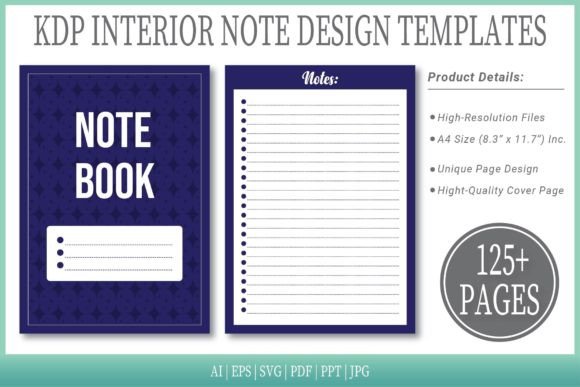
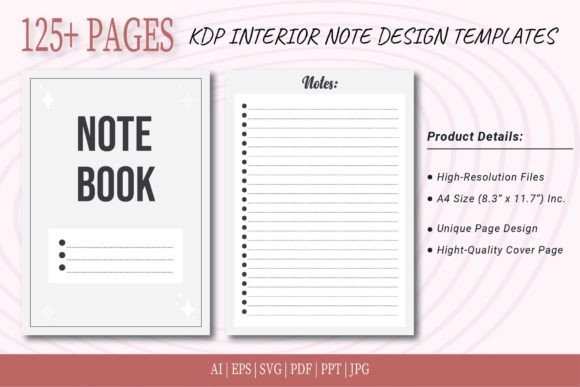
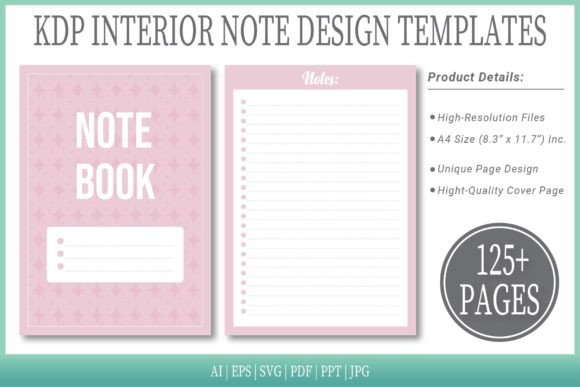
The color isn’t just “pink.” It’s a muted, oyster shell shade that photographs well in mockups and appeals to women in their late twenties through fifties who want something elegant for daily lists, journaling, or meeting notes. Notepads remain one of the strongest low-content categories, and a ready-made interior like this trims hours of design guesswork. You get 125 pages, a complete A4 layout, and multiple source files that let you tweak the opacity of lines, swap out ornamental corners, or simply upload the PDF as-is. That flexibility is powerful. But it’s also where people trip.
The “No Bleed” Assumption That Can Cost You
One of the first things you’ll notice in the product description is “No Bleed.” Many sellers interpret that as “I can just upload this without ever thinking about margins or printing requirements.” For KDP, that’s technically correct because you can select “no bleed” during setup. However, when you later decide to offer the same notepad through another print-on-demand platform that defaults to full bleed, or when a customer prints a few loose sheets at home and their printer clips the pink edge, you’ll get complaints. The fix is not to panic and add bleed haphazardly in a non-editable program. Instead, open the AI or EPS source file included in your download. With a few clicks, you can extend the solid pink background or repeat the subtle border pattern beyond the trim edge, creating a bleed-ready version. Take ten minutes to do this proactively, and save it as a separate PDF labeled “bleed version.” That small step protects you across different sales channels.
Leaving That Editable Source File Unused
It’s almost a tradition: someone downloads the pack, grabs the JPG, throws it into a word processor, and calls it a day. A few days later they leave a comment about low resolution or misaligned elements. What they missed is the editable vector file. Oyster Pink Notepad Templates come with AI, EPS, and SVG formats specifically so you can adjust line weight, change the pink hue slightly (maybe a touch warmer for autumn collections), or add your own small logo to the footer without degrading the design. I remember a life coach who used the default template and then wondered why her brand felt disconnected. She didn’t know she could open the Illustrator file, type her website URL in a barely-there gray font, and instantly make the notepad feel like a custom product. If you don’t own Illustrator, use the SVG in Inkscape (it’s free) or the PPT version in PowerPoint. The point is: the editable files exist for a reason. Use them to blend the template with your voice.
Overlooking the Included Cover Page
There’s a note in the description: “Extra Cover Page Include.” After working with hundreds of KDP bundles, I can tell you that many sellers see this and assume it’s just a placeholder or a duplicate of the interior. It’s usually a designed cover that matches the oyster pink theme, ready for you to add a title or no text at all. Don’t ignore it. Instead, open it separately and check if it aligns with your notepad’s purpose. For a “Gratitude Notes” pad, you might add a hand-lettered title. For a plain “Notes” pad, the subtle pattern alone often sells better than a cluttered cover. This single page can become your strongest marketing image if you export it cleanly and use it in your product mockups.
Mishandling the 6 Format Types
The download folder might look overwhelming at first: AI, EPS, SVG, PDF, PPT, JPG. A common mistake is picking one format and never revisiting the others, even when your workflow changes. For instance, you might start by uploading the PDF directly to KDP, and that works perfectly. But when someone asks for a spiral-bound version through a local printer, they’ll want a different formatting setup. That’s when the PPT or SVG version becomes invaluable. Another scenario: you want to run a promo and share a few sample pages on social media. The high-resolution JPG lets you slice out a clean preview without opening heavy design software. Download the whole bundle once and organize it into subfolders named by use case. It takes two minutes and saves you from hunting later.
Common But Avoidable KDP Technical Slip-Ups
Beyond the template itself, the upload process hides a few traps that even experienced publishers trip over. Here’s what I regularly have to correct when helping someone who’s already frustrated:
- Mismatched page count. The interior has exactly 125 pages. If your KDP listing says 124 or 126, you’ll get an error. Double-check the number before finalizing the details.
- Uploading the JPG as a manuscript. KDP builds print books from PDFs, not image sequences. Use the ready-made PDF interior file included in your download. That PDF is already sized to A4 (8.3″ x 11.7″) and compression is set correctly for crisp printing.
- Forgetting to set “No Bleed” in KDP when using the standard version. If you upload the provided PDF, select “No Bleed” in the book setup. If you select “Bleed” by mistake, KDP will reject the file or, worse, stretch the interior awkwardly.
- Skipping the print preview. Amazon’s previewer can reveal thin lines that appear near the gutter or too close to the edge. The templates are built carefully, but if you’ve edited anything, especially margins, run the preview to confirm nothing shifts.
Real Example: The Small Business Owner Who Fixed Her Returns Rate
A stationery seller I know used the Oyster Pink Notepad Templates for a daily planning pad. She uploaded the PDF without checking, and reviews came in complaining that the lines were too light for older eyes. Instead of abandoning the design, she opened the AI file, increased the stroke weight of the ruling lines from 0.25 pt to 0.5 pt, and adjusted the pink tone to a slightly deeper rose to maintain contrast. She re-uploaded, and the returns stopped. That’s the difference between a rigid template and an adaptable one. You’re not stuck with what you bought; you’re starting from a professional structure that you can refine.
What You Should Verify Before Every Upload
No matter how many times you’ve done this, a quick checklist prevents that sinking feeling after you hit publish. Go through these points calmly:
- Are you using the PDF interior for KDP upload, not a converted JPG or a re-saved file from a low-end editor?
- Does your KDP trim size match exactly 8.3 × 11.7 inches, and is “No Bleed” selected when using the default template?
- Have you opened at least one editable version (AI, EPS, or SVG) to see if a slight personalization—like a faint border adjustment or website line—would elevate the product?
- Is the extra cover page properly exported and added to your product images or listing?
- Did you scroll through the entire 125-page PDF to confirm no pages are blank in odd places and the design repeats consistently?
- If you plan to sell in other markets (Etsy printable, for example), have you saved a bleed version and a no-bleed version separately?
The Soft Power of a Well-Chosen Interior
There’s a quiet benefit that often gets overlooked when people talk about Oyster Pink Notepad Templates: the way the subtle color and layout reduce cognitive load. When a user opens a notepad that feels calm and uncluttered, they’re more likely to use it daily. That habit increases the perceived value and leads to repeat purchases or recommendations. The template already has that intention built into its design—generous spacing, a restrained palette, and a format that doesn’t scream for attention. Your job is to preserve that intention while making the product unmistakably yours. A gentle customization, done in a vector program, can honor the original design while adding your signature without noise.
Approach this not as a one-click miracle but as a smart foundation. The files are ready to upload, yes, but they’re also ready to adapt. When you treat the source files as working materials rather than finished artifacts, the same oyster pink interior can serve a dozen different niches—from meditation journals to project planners—all without buying additional templates. That perspective alone shifts your results from average to deliberate.